How to Prepare Your Files for Perfect Printing: A Practical Guide
When it comes to preparing your files for printing, a few simple precautions can guarantee a flawless final result. Whether you’re a professional or a keen amateur, this guide explains everything you need to know to send print-ready files the right way.
Why Preparing Your File Is Essential
Whether you design your own visuals or work with a designer, it’s essential that your files meet certain technical standards to be compatible with our printing machines. These precautions prevent mistakes and guarantee a result that matches your expectations.
Our professional equipment is calibrated to deliver high-quality prints, but the result also depends on the files you send us. So here’s a guide to preparing your files under the best conditions.
1. Colour Mode: CMYK or RGB?
Understanding the difference
- CMYK (Cyan, Magenta, Yellow, Key/Black): used for printing.
- RGB (Red, Green, Blue): used for digital and screens.
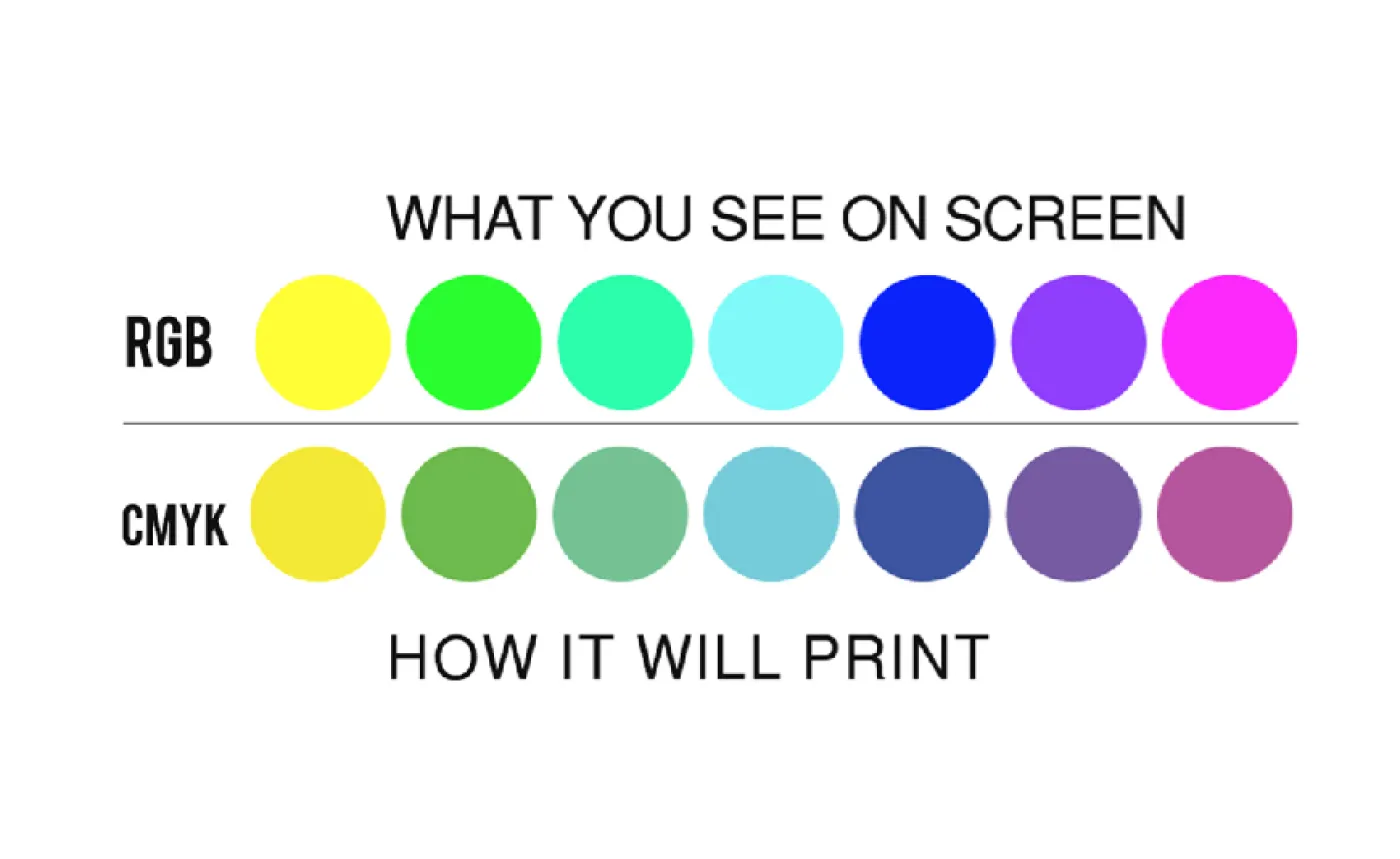
For the best print results, your files need to be in CMYK mode. If you send a file in RGB, a conversion will be needed, which can alter the colours. Also bear in mind that colours displayed on a screen are only indicative and may differ from the printed result.
Why?
Our printing machines are carefully calibrated to guarantee accurate colours. However, most screens aren’t that precise, which can create a gap between what you see and what gets printed.
RGB colours are more "punchy" than CMYK colours. Converting from RGB to CMYK can make your colours look more muted. ©HelloPrint Example of an image converted from RGB to CMYK ©www.graphiste.com2. Accepted File Formats and Recommended Software
Preferred formats
The ideal format for printing is PDF. It guarantees optimum compatibility and unchanged quality.
We also accept the following formats:
- .EPS
- .AI (Illustrator)
- .PSD (Photoshop)
- .TIFF
Formats to avoid
- .JPG and .PNG: often not good enough quality for printing.
- .GIF, .DOC, .XLS, .PPT: not compatible with professional printing.
Recommended software
- Adobe Illustrator, InDesign, Photoshop: ideal for professional designs.
- Canva and other design tools: accepted as long as files meet the technical standards (CMYK, quality, dimensions, etc.).
3. Image Quality
For a perfect print:
- Minimum resolution: 300 dpi for pixel-based images.
- Vector images (logos, text, shapes): ideal for optimum quality, especially on large formats.
Low-resolution files will result in blurry or pixelated prints, especially on larger materials.
4. Bleed and Safety Margin
What are they?
- Bleed: a 2 mm margin where the visual extends beyond the format’s edge to avoid white borders after trimming.
- Safety margin: a 3 mm margin inside the format where no important element should be placed.
These margins make sure your visuals are correctly positioned and free from unexpected cropping.
5. Checks Before Sending
Before sending us your files, check these key points:
- The number of pages matches your order (single/double-sided).
- Bleed and safety margins are correctly respected.
- The file dimensions match your order.
- The image resolution is high enough.
- If possible, include a preview file (JPEG format) to help confirm your request.
Need Help? Download Our Guide
To help you go further, we’ve put together a complete guide for preparing your files stress-free. Don’t hesitate to get in touch if you have any questions or doubts. Our team is here to support you at every stage of your project.
Preparing your files with care means guaranteeing a print that lives up to your expectations!
Download the practical guide